
Logging In
In order to access the iNSight application, you need to access the correct URL, which is fixed for each system.
- For internal employees accessing the application, someone from 4C/Prevoir will provide the correct URL.
- For clients accessing the application, someone from your company will provide the correct URL.
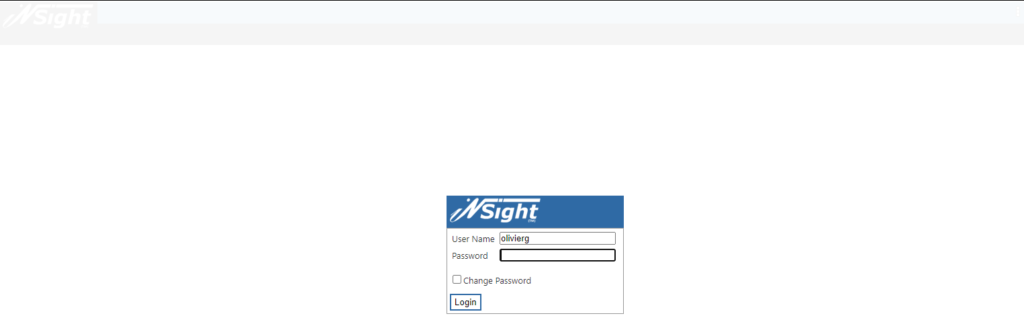
On the Login page, enter your User profile login credentials and click Login.
Once you have logged in successfully, you will see a blank Dashboard. You can customise your Dashboard to display important information and provide quick access to certain screens. See Customising Your Dashboard for more information.
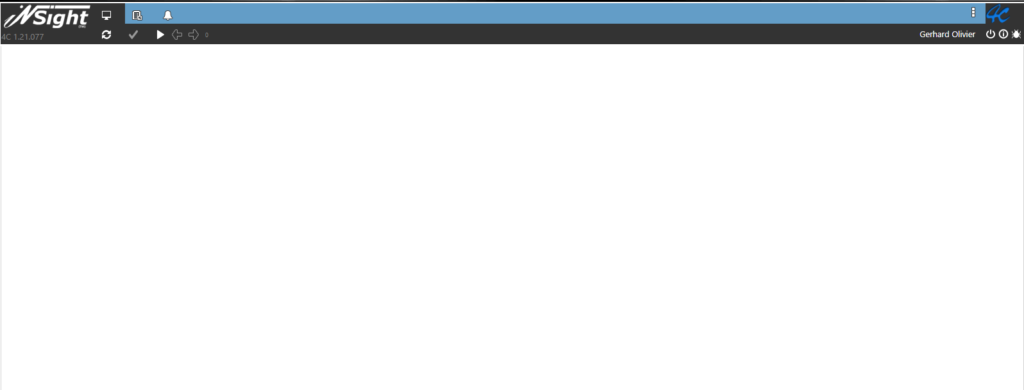
On the top right of the screen you’ll see you are logged in with the listed User profile. You can click the
Logout button to log out of the application.
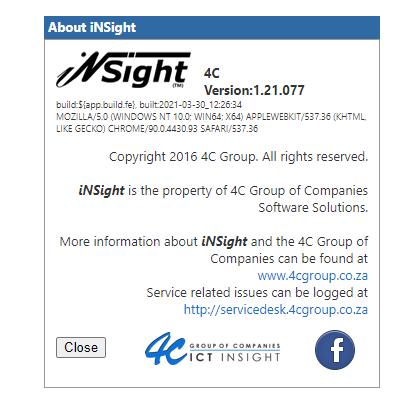
You can click the

About button for more information about the application and the version you are running.
iNsight Toolbar
In the top left of the screen is the iNSight toolbar, which allows you to navigate and control the application.


iNSight button – Click to open the menu where you can search for and open specific interface screens.

Dashboard button – Click to view the Dashboard you have set up on your profile.

Task button – Click to view your current application tasks.

Notifications button – Click to view your current application notifications.

Refresh button – Click to refresh the application without saving any changes that have not been committed.

Commit button – Click to save the configuration changes you have made.

Play button – Click to run a query.

Back/Forward buttons – Click the move backwards/forwards through an event flow.
Navigating
Click the 

When you select a screen, it displays as a tab in the top bar. You can have multiple screens open at the same time.
