

A warm welcome and lots of good wishes on becoming part of our growing team. Congratulations on behalf of all our members. We are excited about what you are going to contribute to our company and truly believe you can help us in achieving our mission!
Introduction
We pride ourselves in having brought one of the most comprehensive and matured enterprise systems to the market. It has been widely embraced by prominent telecom organisations, where it currently manages over twenty two million subscribers due to its unsurpassed speed of deployment, effectiveness and highly competitive pricing model.
Our Mission
Our mission is to deliver the most innovative business solutions, which are supported by the most knowledgeable professionals and result in tangible value to our customers.
Our Values
Our team strives to uphold four core values, which support our vision and shape our company culture:
- Trust which is earned through consistent behaviour over time.
- I am worthy of another person’s trust
- My actions support positive relationships
- Respect which values and seek to understand the other’s perspective.
- I listen intentionally before I give an opinion
- I evaluate and judge once I have gathered as much information as I can
- Transparency which favours openness and fair dealing.
- I do not manipulate or conceal the facts
- I back up my decisions with evidence
- Agility that feeds off an open-source outlook and mentality.
- I search for solutions outside the current frames I am familiar with
- I am open to adjust my current solution, should an improved solution be identified

Company info
We are an international company with partners and offices around the globe, including Mauritius and Tanzania to name a few.
You’re going to hear people referring to “our company” as both “Prevoir” and “4C”. Confused? No need to be! In most cases, people are referring to the same leadership team but are differentiating them based on location. While Prevoir is headquartered in Mauritius, 4C is headquartered in South Africa. These companies work together to develop and deliver our world-leading enterprise solution.
We operate primarily in the Telecoms industry and have a highly recognised and respected name in the enterprise data and transaction management landscape, where we affect major operational improvements and cost savings through our flagship product, namely iNSight. Our in-depth industry and technology insight brings real business process improvements through professional engagements, leading edge application development and a team of certified support consultants, across the globe and around the clock.
Footprint
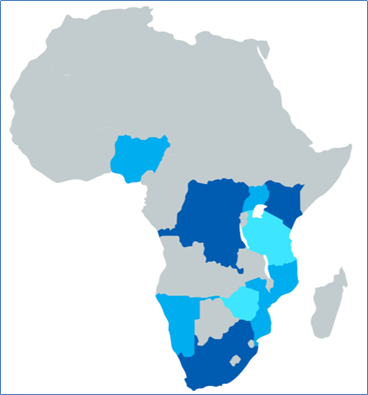
We have an extensive footprint throughout Africa, currently operating in South Africa, Lesotho, Mozambique, Namibia, Zimbabwe, DRC, Tanzania, Malawi, Nigeria and Kenya.
We look forward to colouring the map blue as our footprint grows and new clients come on board. Who knows where we might pop up next!
Meet the Team

We are so proud of the talented, committed, and just generally awesome, team of people we have put together. Let’s introduce you to some of the names you’ll be hearing a lot of.
Upper Management
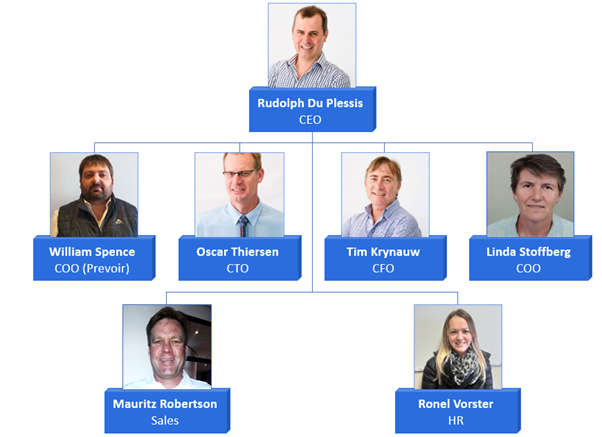
Our leadership team is made up of a collection of experienced experts in their respective fields.
Rudolph Du Plessis is our pioneering CEO and all members of upper management at 4C and Prevoir report directly to him. He remains a hands-on leader who guides our ship through an exciting sea of opportunities and challenges!
Department Managers
You will be introduced to your direct line manager, either face to face or virtually, but the following is a list of the Department Managers/Seniors.
- Sales
- Mauritz Robertson (Sales Manager)
- Human Resources
- Ronel Vorster (Human Resources Manager)
- Finance
- Johan Du Toit (Financial Manager)
- Karen Marais (Senior Accountant)
- Software Development
- Ronel Van Der Vywer (Software Development Manager)
- Information Assurance
- Jacques Hoffman
- Business Assurance
- E-Commerce
- Francois Hoon
- Quinton Gindra
- Systems
- Laramy Starbuck
- Infrastructure DBAs
- Riedewaan Davids
- Service Delivery
- Cameron Gray
- Coenie Olivier
Mental Health Guru
Your mental health is important to us and we want you to enjoy your time working with us. We have a “go-to guy” who is available to assist you, discreetly and confidentially, with any work-related issues that are causing you psychological distress. If, for example, you find yourself struggling with stress management or conflict resolution in your team, or even if you’re just battling to adjust to working from home, he is just an email away!
Getting you started
By now you have received your laptop so let’s get you up and running so you can begin your exciting new journey with us! if you haven’t received your laptop yet this is a crucial first step before continuing any further.
Logging in for the first time
Your Active Directory (AD) account has already been set up for you and you should have received your login credentials.
When you turn on your laptop, the Login page will display. Your profile should load automatically with your name displaying. Therefore, you only need to enter your Active Directory password and click the Arrow button to complete the login process.

Please be aware that we monitor your software usage for security purposes. Please refrain from using illegal software and undesirable software such as torrents, etc.
Setting up Active Directory Self Service
Once you have logged in, the first thing you need to do is set up an Active Directory (AD) Self Service. This not only allows you to perform important actions such as resetting your password and unlocking your account, but also provides an additional security layer.
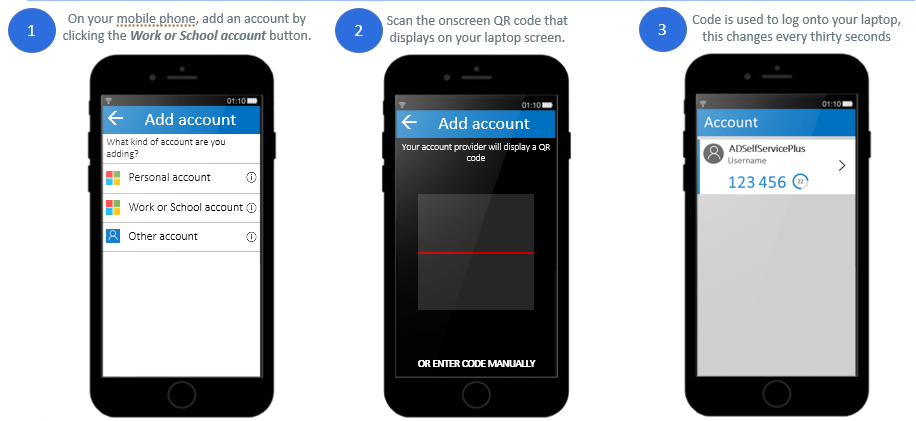
To set up AD Self Service, you need to download Microsoft Authenticator to your mobile phone and then link it to your laptop.
Downloading Microsoft Authenticator
To download Microsoft Authenticator, navigate to the application store on your mobile phone and search for “Microsoft Authenticator”. The first option should be the correct application but please ensure that it is the official application created by the Microsoft Corporation.
Linking your device
Once the Microsoft Authenticator application is installed on your mobile phone, navigate to the following link on your laptop: https://selfservice.4cgroup.co.za:9251
It is a good idea to bookmark this URL so you can access it quickly in future.
Now select the Sign In option.
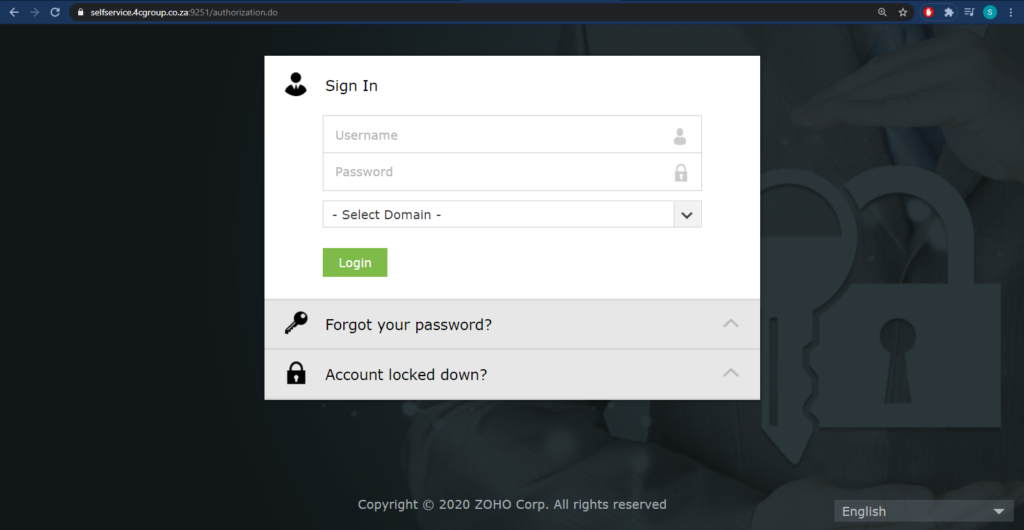
Enter your credentials:
- Username: This is your Surname followed by the first letter of your Name. For example, if your name is Jane Smith you will enter “smithj”.
- Password – This is your Active Directory (AD) password i.e. the password you use to log into your laptop.
- Domain – Select the 4CGROUP option from the dropdown list. Please note that if you are an external user, you need to select 4CCONTRACTORS option from the dropdown list.
Click the Login button to continue.
In the top right corner of the screen, click the Mobile Access button.
Now use your mobile phone to scan the QR code that displays onscreen and then follow the steps illustrated below.
Updating your linked device
If, at some point, you get a new mobile phone, you will need to link the new device with your laptop using AD Self Service. Click here for a step-by-step guide on how to update your linked device.
Logging into your laptop
Once you have linked your mobile phone and laptop, you will need to log into your laptop again.

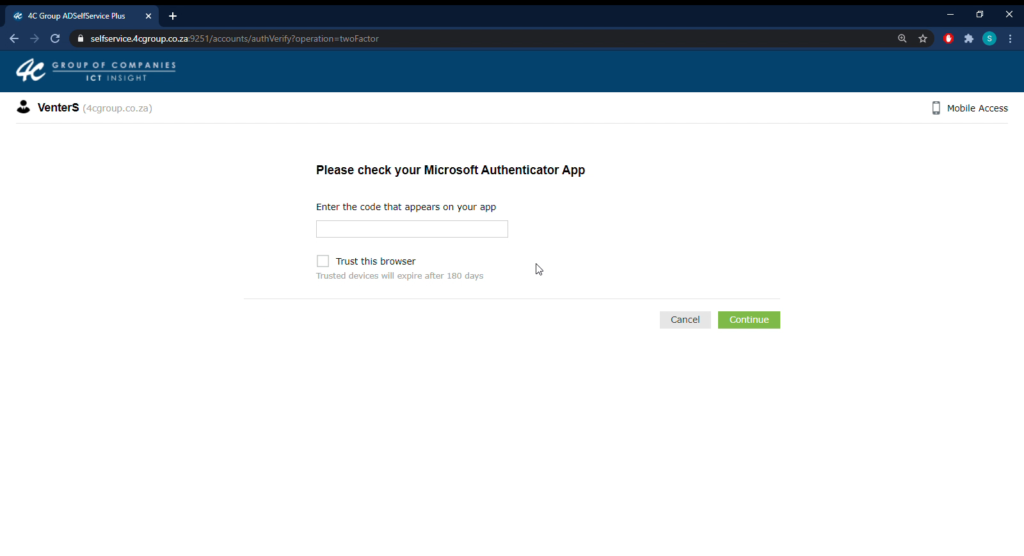
Now open the Microsoft Authenticator application on your mobile phone. A one-time pin (OTP) will display, which you need to enter in the blank field on your laptop screen.

Click Continue to complete the login process.
Going forward, some users will only need to use Microsoft Authenticator for login occasionally. Other users, however, will need to use Microsoft Authenticator each time they log into their laptop.
If your mobile phone is unavailable, say for example your battery is flat, you can bypass the Microsoft Authenticator step by disconnecting your Wi-Fi connection as shown below.

You can now log in simply by entering your Active Directory (AD) password.
Changing your password

For security reasons, please change the default password that you are given as soon as possible.
There are various ways to change your password, depending on your preferred method and your location. Here we will show you how to change your password via the Login screen but you can click here for more information on the alternative methods.
Connecting to the VPN
In order for your laptop to pull through or sync the password from the Active Directory, you will have to be logged in with your VPN enabled. This will have the same effect as logging in as if you are in the office, and then pull through or sync your password.
To access the VPN, press the [Windows] 
Ensure that the VPN Name is set to 4CGROUP-ZACPT-HeadOffice-IS VPN name is selected and then enter your login credentials:
- Username – This is your surname followed by the first letter of your name. For example, if you name is Jane Smith you will enter “smithj”.
- Password – This is your Active Directory password i.e. the password you use to log onto your laptop.
Click Connect to complete the VPN connection.
Login Screen
To change your password, go to your Login screen and click the 
In the AD Self Service window, click the 

Enter your login credentials:
- Username – This is your surname followed by the first letter of your name. For example, if you name is Jane Smith you will enter “smithj”.
- Domain – Ensure that the domain is set to 4CGROUP.
Enter the characters you see in the image and click Continue.

Open the Microsoft Authenticator app on your mobile phone and enter the code that appears on your phone. You will have 5 minutes to complete this process before it times out.
Enter your new password to complete the password change. See the Password Rules section for guidelines on setting a new password.
If you enter a suitable password, you will get confirmation that your password has been changed successfully.
Password Rules
When changing your AD password, please keep the following rules in mind:
- The password may not:
- Contain your account name or parts of your full name exceeding two consecutive characters
- The password must contain characters from three of the following categories:
- English uppercase characters (A through Z)
- English lowercase characters (a through z)
- Base 10 digits (0 through 9)
- Special characters (!, $, #, % etc)
Unlocking your account
If you enter the incorrect password more than three times, your account will be locked. Click here for a step-by-step guide on how to unlock your account.
SharePoint
We use SharePoint as our content management system, which allows us to ensure that everyone has easy access to the information that is relevant to them. Your access is granted based on your permissions. If you find you don’t have access to a file or folder you need, log a ticket with Service Desk to change your permissions (see the Logging IT-Related Requests section).
Logging in
You can access SharePoint using the following link: https://sharepoint.4cgroup.co.za/default.aspx

On the Sign in page, enter your credentials:
- Username – This is your Surname followed by the first letter of your Name. For example, if your Name is Jane Smith you will enter “smithj”.
- Password – This is your Active Directory (AD) password i.e. the password you use to log into your laptop.
Navigating
When you have logged into SharePoint, your Dashboard will display. It is made up of various sections offering you access to useful functionality.

Search Bar
The Search Bar is located in the top right corner of the screen and allows you to search for content on SharePoint.
Sites
Sites are located in the middle of the top of the screen and contain an abundance of features including the ability to create, store and receive data, and manage, tag and search for content documents and information. Most departments have their own sites. Your access to these sites will vary depending on the department you are in.
Libraries

Libraries are locations on a site where you can upload, create, update and collaborate on files with team members. Each library displays a list of files and key information about the files, such as who was the last person to modify a file. Your access to libraries will vary depending on the department you are in. You can select a library to view the content of that library, which can consist of additional libraries, lists and files. The contents page displays multiple columns including:
- Name
- Type
- Items
- Modified
In the example below, the Training Documents library is selected. Within it you can see additional folders and files.

You can access the Training Documents library via the following link: https://sharepoint.4cgroup.co.za/Training/Forms/AllItems.aspx
Lists
Lists are containers for information, like a very simple database or spreadsheet. Some example lists include Announcements, Calendars, Contacts and Tasks.
Group Calendar
The Group Calendar is shared between all users who have access to the site, and displays all scheduled team meetings and tasks.
Uploading/Downloading Files
To upload a file, navigate to the appropriate folder location on SharePoint and then simply drag and drop the file you want to upload. Alternatively, you can use the Upload button found on the toolbar when you’re in the appropriate folder location.
To download a file, hover over the item and click the … icon that appears. In the Actions menu, select the Download option. The download begins immediately.
HR
Policies & Procedures
We like to think that we provide a relaxed and comfortable working environment. We have put some Policies and Procedures in place to ensure that we can keep it this way.
Dress Code

We recognise the growing popularity of casual business dress and the positive effects it has on boosting morale, encouraging more open communication and increasing productivity, thereby creating a more comfortable work environment.
Therefore, we have adopted a “Casual Attire” policy which allows you to dress as you feel comfortable whilst still maintaining a presentable image. Below are some guidelines relating to our “Casual Attire” policy:
- You are expected to maintain a good personal appearance and consider neatness and cleanliness. You should always dress in a manner benefitting the job, with due consideration to the needs of the company, other employees, and safety.
- You are, apart from the inappropriate work attire identified below, encouraged to wear whatever you feel comfortable in while demonstrating good judgement, common sense and professional taste.

While we encourage you to dress as you feel comfortable, please refrain from wearing:
- Torn clothing revealing any form of underwear
- Clothing with profane language statements
- Clothing that promotes causes including, but not limited to, politics, religion, sexuality, race, age, gender, and ethnicity.
- Workout attire such as tracksuits, leotards, tights, running shorts, etc.
- Sheer and see-through clothing
- Undergarments worn as outer garments
- Any tops that reveal your midriff
- Revealing or provocative clothing
- Bare feet
Leave

We understand that you will need to be granted official periods of leave from work for various reasons, such as holidays, sickness, studies, etc.
Click here for more details on Prevoir’s Leave Policy.
Click here for more details on 4C’s Leave Policy.
Work From Home

Work from Home (WFH) means regularly working from a location other than the principal place of employment for part of the work week. We believe that working from home reduces the amount of time spent on the daily commute to and from the office and, which can enhance your work performance and job satisfaction without impairing service delivery to customers.
Therefore, we have implemented a Work From Home Policy which can be made use of under certain conditions.
Click here to find out more about Prevoir’s Work From Home Policy.
Click here to find out more about 4C’s Work From Home Policy.
Referral Policy

We recognise that our employees understand our culture and know what it takes to succeed in our business. By using our current employees as a source to advertise and recruit suitably qualified candidates, we know we will get candidates with the right fit reduce the costs of recruiting.
Therefore, we have implemented an Employee Referral Policy that rewards you for referring candidates who join our awesome team. The Employee Referral Policy extends to all permanent, full-time and part-time positions and there is no limit on the number of applicants you can refer.
If you refer a successful candidate, you will receive a reward of R5, 000.00 once they successfully complete their 6-month probationary period.
To avoid conflicts of interest, the following categories of referral are not eligible for a referral reward:
- The referral of immediate family members within the reporting line i.e. the candidate would directly or indirectly report to the referrer
- Employees who are involved in the hiring decision/process
- Human Resources employees are not eligible to receive any reward for referrals
- Rehires
- Fixed term contractors, casuals, temporary, intern, learnership and vacation positions
- Candidates whose CVs has previously been received by the HR department, including candidates whose information was received but not considered
Click here to view our full Referral Policy.
Sexual Harassment
Sexual harassment is defined as the unwelcome sexual advances, requests for sexual favours, and other verbal or physical conduct of a sexual nature. It can involve granting sexual favours as a condition of employment, and retaliation against a person who refuses to grant sexual favours, which includes anything along the lines of verbal, physical, visual offensive behaviour, etc.
You are required to practice non-offensive behaviour in every situation and avoid any type of unwanted deliberate touching, leaning over, cornering, pinching, etc. For example, please refrain from giving neck or shoulder massages, and touching a person’s hair, clothing, or body parts.
These types of behaviour can create a hostile working environment for all parties involved, particularly when there are frequent or pervasive unwanted sexual comments, advances, requests, or similar conduct. The effects of harassment on an individual can range from simple irritation to extreme depression. Those who are subjected to these types of behavior can lose their self-esteem and morale, resulting in decreased productivity and efficiency, which can ultimately impact the organisation’s performance.
Self Service Portals
Calamari
Calamari is Prevoir’s Leave Management System. It is an online portal that allows management to easily and accurately allocate, track and grant your leave, and allows you to request and track your own leave.
Click here for a basic introduction to the Calamari portal, which shows you how to log in and provides basic information on some of the most useful functionality.
For additional, more advanced, help you can access the Calamari Help Centre.
Sage
4C uses the SAGE Self Service Portal, which is a web-based tool that provides a central online site where you have quick and easy access to HR-related transactions and services like managing personal details, submitting leave applications and claims, and viewing leave balances and payslips.
Click here for a basic introduction to the SAGE Self Service portal, which shows you how to log in and provides basic information of some of the most useful functionality
KPA Reviews
A Key Performance Indicator (KPI) is a specific measure of an organisation’s performance in an area of it’s business. We use KPIs to measure your performance in your role, which is used to inform decisions regarding your salary increases and bonuses.
KPA reviews are undertaken at the end (February) and middle (August) of each year for all employees. In addition to this, junior employees will also have KPA reviews at the end of the first (May) and third (November) quarters.

Salary Increases & Bonuses

Bonuses and increases occur on the anniversary of your appointment date. For example, if you are appointed on 1st of April 2021 your increase and bonus will occur on 31st of March 2022.
Legal

So now we get to the boring, but very important, bit. There are various legal policies and compliances in place that guide how we operate and do business with our clients. Please be aware of and understand the following important policies:
- Declaration of Hospitality, Gifts and Other Benefits
- Anti-Bribery & Corruption
- Business Continuity Management System
- CMT Compliance
Asking Questions
We know there is lots to learn as you join our company and start to get a handle on our product. We promote learning and knowledge sharing so please don’t be afraid to ask lots of questions.
Knowledge Base
Our Knowledge Base is your first stop when looking for answers to your questions!
Before asking your manager, try using the search function to see if we can answer your question for you. For example, if you need to know how to restart the server you could enter the search term “server restart” and see if we have any content that can assist you.
Please remember to give us your feedback on your experience with the Knowledge Base so we know where we can make improvements. If you couldn’t find any content on the topic you searched for, scroll down to the bottom of the page and answer the question “Was this helpful?”. We appreciate both your positive and negative feedback as it helps us to improve our content and fill in any gaps.
Our Knowledge Base is still under construction so please keep checking back in as we are constantly adding new content.
Escalating queries
So what if you can’t find an answer on our Knowledge Base?
During training, start by contacting your trainer. If they don’t have the answer on hand, they will find it for you.
When you join your team, you will have an assigned “Buddy” who will help you settle in. Ask them any questions you have. If they do not have the answer you require, they will tell you who to contact.
Logging IT-related requests/queries
Having trouble logging in, accessing SharePoint documents, or struggling with faulty hardware? You can submit any IT-related queries via Service Desk. To log a Service Desk ticket, email any of our Service Desk Team members. Click here for contact details. Please remember to CC Service Desk (ServiceDesk@4cgroup.co.za) on the mail if you want your query to be attended to
Include as much detail as you can so we can resolve your issue as quickly as possible.
Learning Management System (LMS)
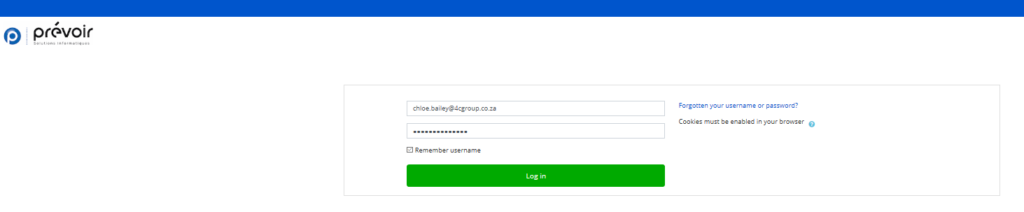
We use the Moodle Learning Management System (LMS) for our online delivery of courses and training programs. You can access our LMS here: https://lms.prevoir.mu/login/index.php
Logging in
Your Moodle account has been set up for you and you should have received an email with your login credentials.
Enter your login credentials:
- Username – This is your work email address with no capitilisation. For example, if your name is Jane Smith you will enter “jane.smith@4cgroup.co.za”.
- Password – This is your work email address with only your initials capitilised. For example, if your name is Jane Smith you will enter “Jane.Smith@4cgroup.co.za”.

Click the Log In button to complete the login process.
Navigation
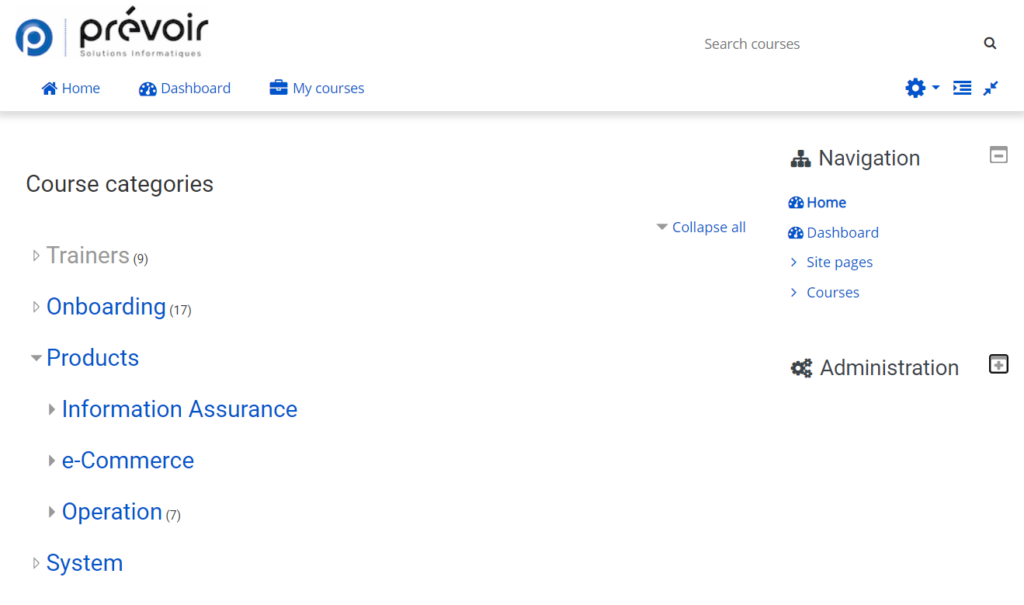
Once you have logged into the LMS, your Home screen displays. The site comprises three main areas:
- Prevoir Logo – Click the logo in the top left of any screen to return to the Home Screen (see below).
- Search Bar – Enter a title or topic name to find a specific course.
- Home Screen – Shows all the available categories and courses.
- Dashboard – Displays the courses you are currently enrolled in and the courses you last accessed. This will be empty before you begin enrolling for courses.
- My Courses – A dropdown menu displaying your current and past courses.
You can toggle between these areas using the buttons in the top left corner. Alternatively, you can use the Navigation pane on the right of the screen.
During training, you will most likely be sent direct links to the courses you need to complete. If, however, you need to find a specific course, you can expand the Course Categories section on the Home screen or simply use the Search Bar in the top right of the screen.
Enrolling in a course
So now you’re ready to start your iNSight education!
To enrol in a course, navigate to the course you are wanting to complete.
On the Enrolment options page, click the Enrol me button.
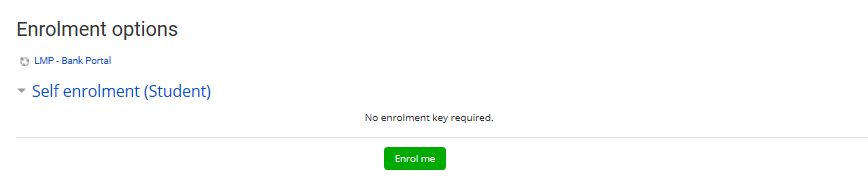
You will receive an email confirming your enrollment in the course.
You will be taken to the Welcome screen where you can click the link to get started.
Wrap Up

Congratulations! You’ve made it through your onboarding! The first step on your journey with us is complete. You should be up and running in terms of hardware and software, and also have a basic idea of who we are, what we do and how we operate.
Now, let’s get you trained up on the areas of our product you’ll be working with when you join your team.
Good luck on your learning journey!